Skip to content
IPTV Player Guide • UK 2026

TiviMate IPTV Player UK: Setup Guide for Firestick & Android TV

TiviMate is widely regarded as the benchmark IPTV player for big-screen television navigation. Designed specifically for Amazon Fire TV, Firestick, and Android TV devices, it transforms compatible IPTV playlists into a modern, broadcast-grade television experience with responsive EPG guides and remote-friendly controls.

Important clarification: TiviMate is strictly a media player application. It does not provide TV channels, streams, or video content. You connect your own compatible credentials — such as a TVPrime4K subscription or free trial — to supply your playlist.
✓ Xtream Codes & M3U ✓ Full EPG Support ✓ Fire TV & Android TV ✓ No Contract Required
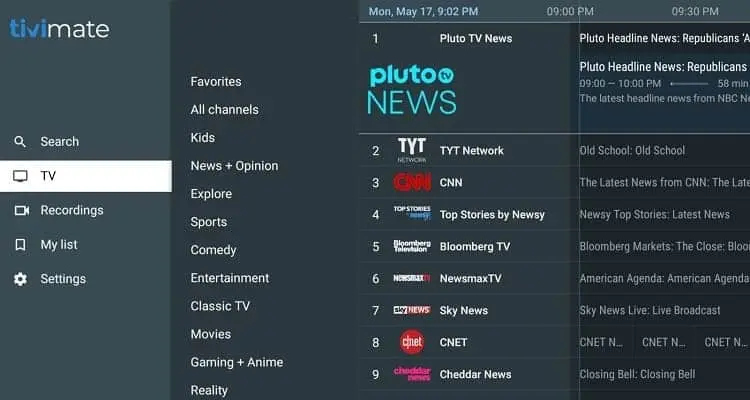
TiviMate IPTV Player interface on Firestick displaying TV programme guide and channels

TiviMate electronic programme guide (EPG) layout with live preview on Fire TV

Player Architecture

What is TiviMate IPTV Player?

Many viewers new to IPTV assume that downloading an app immediately gives them access to live TV channels. Understanding the distinction between an IPTV player application and an IPTV subscription provider is key to a smooth setup.

The Application: TiviMate

TiviMate is purely the software interface installed on your streaming hardware. Its job is to interpret stream URLs, organize channels into sensible categories, format the TV guide timeline, and decode digital audio and video feeds. It does not provide content, maintain streaming servers, or control channel availability.

  • • Clean TV remote navigation
  • • Modern dark aesthetic
  • • Independent software development

The Service: TVPrime4K

TVPrime4K is the subscription service that delivers the digital broadcast streams. When you subscribe or request a free trial, you receive your Xtream Codes connection parameters (Server URL, Username, and Password). Entering these into TiviMate populates the player with live channels, movies, series, and EPG schedules.

  • • High-speed streaming infrastructure
  • • Accurate UK & international EPG guide
  • • Multi-connection plan options

Capabilities

Why TiviMate is the Preferred IPTV Player

Unlike touchscreen-first mobile players ported awkwardly to TVs, TiviMate was engineered from the ground up for living room screens and remote control navigation.

Broadcast-Grade EPG Guide

Smooth grid navigation with customizable past/future time windows, channel logos, programme descriptions, and automatic background guide updates.

Multiple Playlists Support

Manage backup playlists or regional accounts in one unified application, with the ability to switch or merge channels across subscriptions.

Custom Favourites & Groups

Group your most-watched sports, documentary, and entertainment channels into a custom favourites folder, and hide categories you never watch.

Catch-Up TV Playback

Rewind and catch up on missed broadcasts directly from the EPG timeline when enabled on supported channels by your service provider.

Scheduled Recording

Record live programmes to internal storage, connected USB drives, or local network attached storage (SMB) on Android TV and Firestick devices.

Multi-Screen Viewing (Multiview)

Watch 2, 3, or up to 4 live streams concurrently on one television screen — ideal for keeping tabs on multiple concurrent live sports events.

Search & Quick Channel Switch

Instantly search channels, live events, movies, and series by title across your entire playlist without scrolling through long channel menus.

Parental Pin Protection

Lock adult, international, or specific channel categories behind a custom four-digit master PIN code to protect younger viewers in the home.

Hardware Video Acceleration

Take advantage of dedicated GPU decoders in Fire TV 4K Max and modern Android TV chips for buttery-smooth 50/60 fps sports playback.

Hardware Guide

TiviMate Device Compatibility

TiviMate is engineered exclusively for TV-style Android operating systems operated with a physical remote control. Here is where it works best.

FTV

Amazon Fire TV Devices

Recommended Platform

Fully compatible with Fire TV Stick HD, Fire TV Stick 4K, 4K Max, and Fire TV Cube. The Fire TV 4K Max provides exceptional responsiveness with Wi-Fi 6 connectivity.

Check our dedicated IPTV Firestick UK page for device benchmarks.

ATV

Android TV & Google TV

Native Google Play App

Works natively on certified Android TV / Google TV smart sets (Sony, Philips, TCL) and streaming dongles like Chromecast with Google TV.

Direct install from Google Play Store with automated background updates.

BOX

Media Boxes & Shield TV

Peak Performance

Nvidia Shield TV and Shield TV Pro represent the most powerful hardware for running TiviMate, delivering instant channel switching and 4-way multiview.

Supports AI 4K upscaling and gigabit Ethernet streaming stability.

Platform Availability Note: TiviMate is not natively available on Samsung Smart TVs (Tizen OS), LG Smart TVs (webOS), Apple TV (tvOS), iPhones, iPads, or Windows PCs. If you stream directly on a television, explore our dedicated Smart TV IPTV UK guide or visit our Setup Guides Hub to view compatible players such as IBO Player, IPTV Smarters, or VLC.
Fire TV Installation

How to Install TiviMate on Amazon Firestick

Because TiviMate is built for standard Android TV, Amazon does not list it inside the default Amazon Appstore. Fire TV owners install it using the official Downloader utility.

  1. 1
    Install the Downloader app: Search for "Downloader" in the Fire TV app store and install the orange Downloader utility by AFTVnews.
  2. 2
    Prepare Fire TV Developer permissions: Under Fire TV Settings > My Fire TV, ensure Downloader is authorized to install applications.
  3. 3
    Enter the official download source: Open Downloader and fetch the verified TiviMate APK package directly from the developer's official site.
  4. 4
    Install & Add Playlist: Launch TiviMate, select "Add Playlist", and enter your TVPrime4K credentials.

Official Downloader Advice

Always use verified developer URLs or official Downloader shortcuts rather than unknown third-party APK aggregator mirrors. Third-party mirrors may distribute modified or outdated packages that can compromise account security or cause playback errors.

Need step-by-step assistance setting up your device? Our team is available 24/7 on WhatsApp.

Visit TVPrime4K Support Center →
Google Play Certified

Simple Android TV Workflow

Unlike Fire TV where manual sideloading is required, genuine Android TV and Google TV devices offer a one-click installation experience directly through the on-device Play Store.

Android TV Setup

TiviMate on Android TV & Google TV

If your television runs official Android TV or Google TV (such as Sony Bravia, Philips Ambilight, TCL, or a Chromecast dongle), installing TiviMate takes under two minutes.

  1. 1
    Open Google Play Store: On your Android TV home screen, open the Google Play Store application.
  2. 2
    Search for "TiviMate IPTV Player": Select the search icon and type TiviMate.
  3. 3
    Click Install: The app downloads and installs automatically. Premium in-app purchases can also be managed directly via your linked Google Play account.

Connection Methods

Connecting Your Playlist to TiviMate

TiviMate supports both Xtream Codes login and M3U playlist URLs. Here is how both methods work and why Xtream Codes is our recommended approach.

Recommended Method

Xtream Codes Login

Xtream Codes uses an API connection that separates your playlist into Live TV, Movies, and Series while syncing your EPG guide and account expiry automatically.

Server URL: http://your-server-url:port

Username: your-assigned-username

Password: ••••••••

Your unique credentials are provided immediately after signup. Simply copy them into the three respective fields in TiviMate.

Alternative Format

M3U Plus Playlist URL

An M3U URL is a single web link containing stream pointers for all channels. In TiviMate, you select "M3U Playlist" and enter or paste the entire URL.

Playlist URL: https://server:port/get.php?username=...&password=...&type=m3u_plus

While functional, typing long M3U URLs with a TV remote is tedious. Using Xtream Codes or a remote keyboard app makes input significantly faster.

Feature Comparison

TiviMate Free vs. TiviMate Premium

TiviMate can be used completely free of charge, but upgrading to TiviMate Premium unlocks power-user features that make it feel like a high-end commercial television receiver.

Feature Free Version Premium License
Playlists Allowed 1 Playlist Multiple Playlists
Electronic Programme Guide (EPG) Basic single source Multiple EPG sources & custom assignments
Custom Favourites Management Limited ✓ Full reordering & groups
Catch-Up TV Playback ✕ Not available ✓ Supported where available
Recording & Schedules ✕ Not available ✓ USB / Internal / Network (SMB)
Multi-Screen Multiview ✕ Not available ✓ Up to 4 live feeds simultaneously
Parental PIN Controls ✕ Not available ✓ Category & channel lock
Note: TiviMate Premium licenses are purchased directly from the application developer via Google Play or the official TiviMate Companion app. TVPrime4K is an independent subscription provider.

Optimization Guide

Recommended TiviMate Settings for UK Users

Out of the box, TiviMate delivers solid performance. Tweaking these settings ensures your guide stays current and playback remains buffer-free during peak viewing hours.

1. EPG Update Frequency

Under Settings > EPG, set the update interval to 24 hours and enable "Update on app start". This ensures schedule listings and programme details for live sports remain accurate.

2. Buffer Size Adjustment

Under Settings > Playback, set the Buffer Size to "Normal" or "Large". A larger buffer creates a safety cushion against temporary Wi-Fi jitter on home broadband connections.

3. Clean Up Unused Groups

In Playlist Settings > Manage Groups, hide foreign language bouquets or content folders you do not watch. Reducing the active channel list accelerates search and saves RAM.

4. Hardware Decoder

In Playback settings, make sure Video and Audio Decoders are set to "Hardware". Hardware decoding offloads decompression to your device graphics chip, preventing overheating.

5. Auto-Frame Rate (AFR)

If your TV supports it, enable Auto-Frame Rate matching in TiviMate. This matches your display refresh rate to the broadcast stream (50 Hz for UK television, 60 Hz for US sports) for judder-free motion.

6. Backup Configuration

Once your favourite channels, EPG offsets, and custom groups are configured, use Settings > General > Backup Data to save a backup file to your storage.

Player Comparison

TiviMate vs. IPTV Smarters Pro

TiviMate and IPTV Smarters Pro are the two most recognizable IPTV applications in the UK. Choosing between them depends on your viewing habits and device ecosystem.

TM

TiviMate

Best for Big-Screen Television

  • ✓ Best remote control navigation on Fire TV & Android TV
  • ✓ Superior, customisable electronic programme guide (EPG)
  • ✓ Multi-screen multiview & advanced recording features
  • ✕ Limited to Android TV & Fire OS devices only
IS

IPTV Smarters Pro

Best for Multi-Device Users

  • ✓ Broad compatibility across iOS, Android, Windows & Mac
  • ✓ Separate dedicated dashboard sections for Movies and Series
  • ✓ Simple credentials login without complex setup
  • ✕ Less flexible EPG customization compared to TiviMate

Troubleshooting

TiviMate Problems & How to Fix Them

Encountering a playback issue? Here are quick resolutions for the most frequent TiviMate setup and streaming problems.

If your playlist fails to refresh or displays an HTTP error, navigate to Settings > Playlists, choose your playlist, and tap Update. Confirm your TVPrime4K subscription or 24-hour trial is active and that your server URL, username, and password do not contain accidental spaces. If the issue continues, contact support for account status verification.

Go to Settings > EPG > EPG Sources, select your guide URL, and choose Update. Ensure that your playlist is assigned to the correct EPG source in Playlist Settings. If certain individual channels lack guide listings, you can manually assign EPG channels by holding the remote Select button on the channel and selecting "Assign EPG".

Buffering on Fire TV or Android TV is usually a local networking or Wi-Fi interference issue. Go to Settings > Playback in TiviMate and set Buffer Size to "Large". If possible, connect via 5 GHz Wi-Fi or a wired Ethernet adapter. Restarting your router and clearing the TiviMate cache from the device system settings will also free memory.

Double-check that the Server URL includes http:// (or https://) and any specified port number. Usernames and passwords are case-sensitive. Verify that your device clock is set to automatic network time, as timestamp mismatches can cause server authentication handshakes to fail.

Audio/video mismatch usually stems from hardware decoder conflicts. Navigate to Settings > Playback in TiviMate and switch the Video Decoder or Audio Decoder between "Hardware" and "Software". Alternatively, you can enable an external media player (such as VLC) for tricky stream codecs.

Older Fire TV devices can run low on internal flash storage and RAM. Go to Firestick Settings > Applications > Manage Installed Applications > TiviMate and choose "Clear Cache" (do not select Clear Data unless you wish to re-enter your playlist). Uninstall unused streaming apps to keep at least 1 GB of free storage space.

Still running into issues? Visit our comprehensive Setup Guides or reach out to Customer Support for personal assistance.

Subscription Plans

TVPrime4K Subscription Plans for TiviMate

Connect TVPrime4K to TiviMate with instant Xtream Codes activation. Every plan includes full access to live sports, entertainment, movies, and automated EPG guide schedules.

1 Month

£9.99

1 screen

  • Flexible access
  • Setup guidance
  • Customer support

Connections

Simultaneous streams

Choose one
Choose This Plan

3 Months

£19.99

£6.66 a month · 1 screen

  • Flexible access
  • Setup guidance
  • Customer support

Connections

Simultaneous streams

Choose one
Choose This Plan

6 Months

£36.99

£6.17 a month · 1 screen

  • Flexible access
  • Setup guidance
  • Customer support

Connections

Simultaneous streams

Choose one
Choose This Plan

12 Months

Most Popular

£49.99

£4.17 a month · most chosen

  • Flexible access
  • Setup guidance
  • Customer support

Connections

Simultaneous streams

Choose one
Choose This Plan

24 Months

Best Value

£89.99

£3.75 a month · 1 screen

  • Flexible access
  • Setup guidance
  • Customer support

Connections

Simultaneous streams

Choose one
Choose This Plan

Test Before Subscribing

Try TVPrime4K on TiviMate Free for 24 Hours

Test our stream stability, live channel lineup, and comprehensive EPG guide in TiviMate on your Firestick or Android TV device before purchasing.

  • ✓ Complete live channel & EPG access
  • ✓ Instant Xtream Codes credentials
  • ✓ No credit card or automatic billing
  • ✓ 24/7 customer support assistance

Learn more on our IPTV Free Trial UK page.

Frequently Asked Questions

TiviMate IPTV Player FAQs

Clear answers to the most common questions regarding TiviMate setup, playlist connections, compatibility, and features.

TiviMate is a specialized IPTV and media player app developed specifically for Android TV and Amazon Fire TV devices. It provides a polished television interface with an electronic programme guide (EPG), channel categories, favourites, and playback controls. TiviMate is strictly a player — it does not supply any content or channels by itself.

No. TiviMate does not host, provide, or broadcast any television channels, live sports, or video on demand. It is a standalone software application. To watch television, you must supply your own compatible playlist from a service provider such as TVPrime4K using Xtream Codes credentials or an M3U URL.

Yes. TiviMate is one of the most popular IPTV players used on Amazon Fire TV Stick HD, 4K, 4K Max, and Fire TV Cube. Because it is not in the native Amazon Appstore, users typically install it via the Downloader app before connecting their playlist credentials.

Yes. TiviMate is available directly on the Google Play Store for certified Android TV and Google TV devices, including Chromecast with Google TV, Nvidia Shield TV, and smart televisions manufactured by Sony, Philips, and TCL.

In TiviMate, go to Settings > Playlists > Add Playlist and select "Xtream Codes". Enter the Server URL, Username, and Password provided in your TVPrime4K activation email or customer portal, then select Next. TiviMate will automatically load your channel lineup, VOD catalog, and EPG guide.

Yes. TiviMate supports standard M3U playlist links. When adding a playlist, select "M3U playlist" and enter or paste your M3U URL. While M3U works well, Xtream Codes is generally recommended for faster loading, automatic category organisation, and synced EPG data.

EPG data may fail to update due to temporary network hiccups, incorrect provider timestamps, or an outdated EPG URL. To refresh, navigate to Settings > EPG in TiviMate, select your guide source, and tap "Update". You can also verify that your device system date and time are synchronized automatically with the internet.

Buffering is typically caused by Wi-Fi signal drops, ISP bandwidth throttling, or heavy local network traffic. To minimise buffering, connect your streaming device using an Ethernet cable, adjust the TiviMate buffer size setting to "Normal" or "Large", restart your home router, and close background applications.

The free version of TiviMate allows you to add a single playlist and navigate channels with standard EPG. However, TiviMate Premium unlocks essential power features including multiple playlists, favourites management, channel sorting, catch-up TV, recording, multiview, and manual EPG assignments.

No. TiviMate is compiled exclusively for the Android operating system and is not compatible with Samsung Tizen or LG webOS. If you own a Samsung or LG television, you can either use a compatible smart TV app (such as IBO Player or Smart IPTV) or connect an external Amazon Firestick or Android TV streaming stick via HDMI.

Have another question? Browse our full Knowledgebase FAQ or contact Support.

Helpful guides

TiviMate troubleshooting and setup guides

Explore detailed fixes for TiviMate EPG, Firestick playback and account setup issues.

Browse all guides

Ready for Better TV?

Connect TVPrime4K with TiviMate Today

Experience crystal-clear live television, rich EPG guides, and smooth remote navigation on your Firestick or Android TV.